Help using xHeal
Find help adding records, connecting information and preparing for your next appointment.
Start with what you want to do
Need more help? Email us at support@xheal.ai
How do I add a lab report?
Start with a readable PDF or photo of a report you already have. Open Timeline, use the add-file action and review the preview and any usage allowance before continuing.
Follow the record-upload guide →How do I check the information extracted from a document?
Find the record in Timeline and compare its date, values and units with the original document. Use the available correction controls or contact support if you find an error.
See how to check an uploaded record →How do I connect Apple Health?
Follow the Apple Health connection prompts in xHeal. Review the requested data categories and choose the permissions you want to grant.
Read the Apple Health guide →How do I prepare an appointment summary?
Gather the relevant records, dated changes and questions you want to discuss. Check the summary against the original sources and ask your practice how it prefers to receive information.
See an example appointment summary →How does sharing with a clinic work?
At an xHeal-connected clinic, continue in xHeal to review the recipient, appointment and sharing choice before confirming. Browsing a listing or uploading a record does not give a clinic access.
Read how data sharing works →Where can I check my plan and feature access?
Check your current plan and purchase screens in the app for included features, usage allowances and subscription terms. Review the price and renewal terms before confirming a paid option.
Read the subscription guide →xHeal features explained
What is xHeal Chat?
Ask questions about the health information in your profile. xHeal Chat helps explain records, scores and reports so you can explore changes and prepare questions for your care team.
What is Records?
Records keeps the medical documents, lab results and other files you add in one place, so you can find and review them when you need them.
What is Routine?
Routines bring together activities such as meal logging, workouts and check-ins. Use the activities available in your app to keep a record that fits your day. Completion is a record of app activity, not a clinical measure of health.
What is an xHeal report?
An xHeal report brings together records, measurements and symptom notes from your profile. Review the summary before sharing it with your care team.
What are Vitals?
Vitals are measurements such as heart rate, blood pressure, oxygen levels and weight. Review them over time to see changes from your usual readings.
What is Flare-Up Tracking?
Log symptoms such as headaches, fatigue or digestive issues, with the dates and details you want to remember. Review episodes alongside sleep, meals and activity to explore possible patterns with your care team.
What does Indicator Tracking do?
Indicators help you explore the information available in your profile. Check each indicator's definition, source and date. A trend or wellness estimate does not establish disease risk or predict a health event.
What is Health Awareness?
Health Awareness helps you explore and understand your health information. Read the definition shown in your app. Learning progress or profile completeness does not establish whether you are healthy or unwell.
How should I interpret an xHeal score?
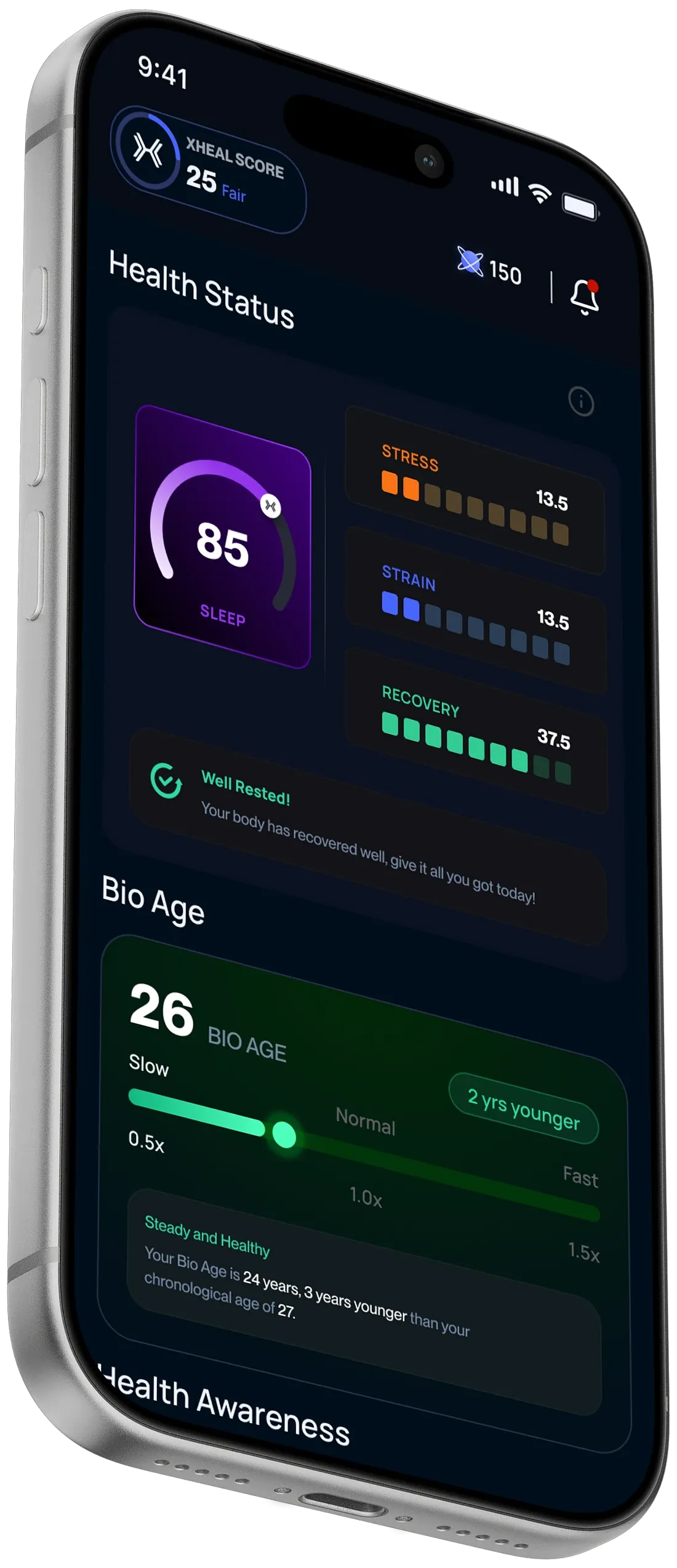
Use the explanation attached to that indicator in your version of the app. Different indicators may describe different things, such as readiness or available information. Review the underlying records and discuss health questions with a professional rather than treating a score as a clinical grade.